From AI to Easy Access: How Unified Navigation Enhances the Destiny Experience
Blogs
February 27, 2025
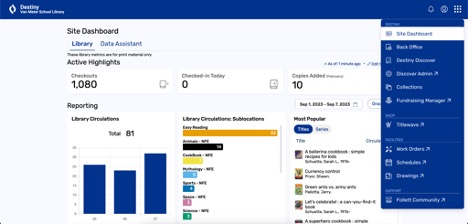
Our friends at Follett Software have been working hard to bring us new upgrades to the Follett Destiny® platform. The most recent one is incredible and truly a game changer! It’s called Unified Navigation.
With Unified Navigation we can access advanced capabilities, benefit from seamless integrations, and gather in-depth reporting. The enriched reporting capabilities gives us extensive insights into our library, which will be so beneficial to the success of librarians and school library programs. Unified Navigation also allows district-level users to access other areas of Destiny and move easily between different schools.
One of my favorite things about this amazing update is that it includes AI-powered tools that will help us work smarter and faster in gathering the data that we need.
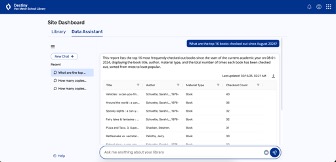
I love being able to ask all kinds of fun and helpful questions to Destiny AI: Data Assistant that would take me so much more time in the past. In fact, the data I have gathered from Destiny AI has helped me create new Carousels in our Destiny Discover® and set up Battle of the Books by asking the Top 16 books of the school year, and currently I am using it as I work on my library budget. The possibilities are endless on how we use this amazing new AI tool!
In fact, I recently was part of a Follett Software webinar, Destiny AI: Enhancing Library Management Through User Insights, that you will find here.
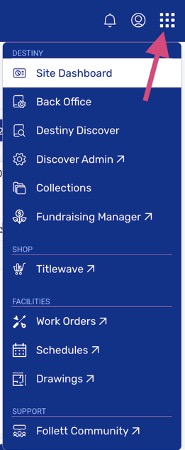
Another thing I love is how easy it is to switch between the different Destiny products such as Destiny Discover, Destiny Back Office, Collections by Destiny, and more. You can access this from the waffle menu in the right-hand corner, as shown in the image above. It even remembers where we left if you go back during the same session.
Within this menu, there are other parts of Destiny and other Follett services including Discover Admin, Titlewave®, Fundraising Manager, and Follett Community that are available to Destiny users with site access.
Let me tell you how to enable Unified Navigation, friends. It takes just five easy steps.
- Log in as a Destiny Administrator.

- Select Setup and…

The Sites tab.

- Next to the district name, click the pencil icon to edit.
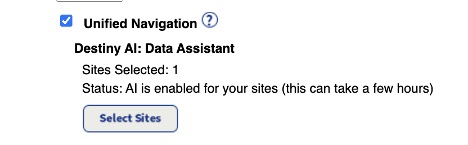
- On the Edit District page, you will select Unified Navigation.
- Click save and you are ready to go!
This is a helpful video about how to enable Unified Navigation too. These additions have brought so much to our library already. As we use more of these features on a daily basis, I can’t wait to see how we will continue to work smarter and faster, while truly seeing the benefits of Unified Navigation and all it has to offer.
Related Resources
How to Automate Your K-12 1:1 Device Audits and Inventory
Blogs
Why Follett Software and Destiny AI Are the Smart Choice for K-12 Resource and Library Management
Blogs
